Reach the N900 from a computer: a file server in the phone
How do you get a file from a computer to the N900 and back? The USB cable works only in one mode at a time, Bluetooth is slow, and a memory card has to be pulled out of the phone. A better way is the one every other device has today: the phone shows its files on the network, and any computer opens them in a browser. This is how to do it with copyparty, a file server that runs on our Python 3 and needs nothing on the computer side except a browser.
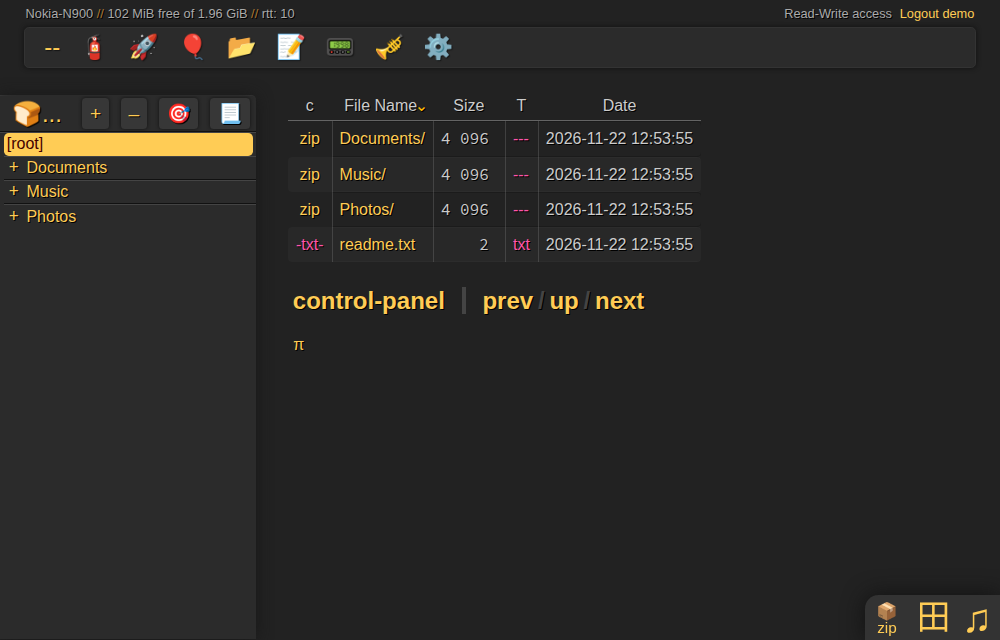
(The picture is a demo folder with made-up files, shown in Chrome on a PC. The phone’s own folder MyDocs looks the same.)
What you need
- The N900 and the computer on the same network: the same Wi-Fi at home, or a Wi-Fi network that the computer makes and the phone joins. Only the home Wi-Fi is tested here.
- The package, after adding the repository, as root on the phone:
apt-get install copyparty # brings python3.11 if you do not have it
Start it
Open the menu and start File server. A terminal window opens and prints what to type on the computer:
File server (copyparty) is running. In the browser of your computer open:
  http://192.168.1.50:3923/
  user: n900    password: p5rki9bz7o

Ctrl-C (or closing this window) stops the server.
(The password is made at random at the first start, yours is different.) On the computer, open that address in any browser, log in with the user and the password, and you see the folder MyDocs of the phone: the pictures, videos, music and documents that
the phone itself shows in its file manager. Click a file to download it. To upload, drag files into the window, or use the upload part of the page. A folder can be downloaded as one zip file (the zip in the list).
Close the terminal window (or press Ctrl-C) and the server stops. While it runs the phone is best left alone: put it on a table and let it work (see the memory note below).
If the terminal says that there is no network connection, the phone is not on a network: join your Wi-Fi first. If the address is not shown, you can read it yourself in a terminal: ifconfig wlan0, the line inet addr.
Commands
The menu entry is the easy way. In a terminal (as the user, not root) the same thing is one command, and there are more:
copyparty-share          # in the foreground, like the menu entry
copyparty-share start    # in the background; the terminal can be closed
copyparty-share status   # is it running, the address, the login
copyparty-share stop
copyparty-share passwd   # a new random password
copyparty-share config   # shows ~/.copyparty/share.conf
Note that the background server keeps running when you close the terminal: stop it when you are done.
Which folder, which user
Everything is in one text file, ~/.copyparty/share.conf, which the first start creates:
[global]
  p: 3923
  no-thumb
  no-robots

[accounts]
  n900: p5rki9bz7o

[/]
  /home/user/MyDocs
  accs:
    rw: n900
[accounts] lists the users and their passwords, each [/name] section is one shared folder (the real path first, then who may read and write), and the port is p. Add a second folder:
[/music]
  /home/user/MyDocs/Music
  accs:
    r: *
r: * means that anyone on the network may read it without a login, rw: n900 that the user n900 may read and write. Restart the server after a change. The full list of the options is in the
documentation of copyparty and in copyparty --help. You do not have to edit the file by hand: the package copyparty-hildon (menu File server settings) has a start and stop button, the list of the shared folders and the users with their passwords.
The server speaks plain HTTP and listens on every network connection of the phone. At home, or on your own hotspot, that is fine. On a Wi-Fi that others use, or on the internet, the password travels in clear text and anyone on that network can try to guess it. Do not leave it running there, and do not share more than you need. A folder in RAM (
/tmp) is refused for writing by the server itself.
What was tested, honestly
- On one phone, over the home Wi-Fi, with the package from this repository: the server starts (about 3 seconds after the first start, which compiles the Python files; without that it takes 15 to 20 seconds), the login works, a request
without the login or with a wrong password is refused, a file is downloaded, a file is uploaded (with
curl; uploading through the web page itself I did not try) and appears on the card owned by the user, the server stops. These are the 18 tests of the package (make -C apps/copyparty test). - The list of the files was opened in a browser (Chrome on a PC). The speed was measured once: 1.4 MB/s when uploading an 850 kB file; A video of about 100 MB played from the phone in the browser of the computer; jumping to another place in the video was sluggish (the phone has to find and send the new part first). I have not measured long transfers, and I have not tried them with the screen of the phone locked.
- The server takes about 30 MB of memory. The phone has 245 MB and often little free, so close other applications first. Thumbnails and the index of the files are off for that reason (there is no picture preview in the browser).
- Not tested: USB networking and a hotspot (the principle is the same, the phone just needs an address in the same network), HTTPS, the internet, several users at once.
- The package holds the official release 1.20.26 as it is (its checksum is checked when we build it); copyparty is MIT licensed, made by ed and its contributors.
Sources: apps/copyparty in the main repository.