Your first N900 GUI app in Python 3, tried in the emulator
The N900 can run a native Hildon application written in Python 3.11. There is a catch: PyGTK exists only for Python 2, and PyGObject needs GObject Introspection data that GTK 2 and Hildon do not have.
So an application has to call the C libraries through ctypes. hildonlite does that for you in one pure-Python file:
windows, buttons, entries, lists, dialogs, the application menu, kinetic scrolling and timers.
This post builds a small application, Quick notes, and tries it in the emulator of the development kit
(set it up first: The N900 emulator on your PC). The finished example is in the kit as apps/quick-notes.
The shortest program
import hildonlite as hl

hl.init()
win = hl.Window("Hello")
box = hl.VBox(spacing=8)
box.add(hl.Label("Python 3 + Hildon"), expand=True)
box.add(hl.Button("Quit", "closes the window", on_clicked=lambda b: hl.quit()))
win.add(box)
win.show()
hl.main()
Save it as hello.py and run it on the virtual screen: make hildon-run SCRIPT=hello.py SHOT=build/hello.png.
On a phone you need apt-get install python3-hildonlite (how to add the repository: Using the N900 repository on the phone).
Quick notes: two files, not one
A text field with an Add button on top, the notes below, a menu that deletes. I split it into
notes.py, the data side: load and save a JSON file, add and remove a note. No GUI, so it can be tested on the PC in milliseconds,quick-notes, the GUI: builds the window from hildonlite widgets, callsnotes.pyand saves after every change.
That split is the habit worth keeping: the logic in a module that does not import the GUI, the GUI thin.
The data side
def add(notes, text, now=None):
    """A new list with the note at the front; blank text adds nothing."""
    text = " ".join(text.split())
    if not text:
        return list(notes)
    return [{"text": text, "ts": int(time.time() if now is None else now)}] + list(notes)

def remove(notes, index):
    """A new list without the note number `index` (an index out of range removes nothing)."""
    if not 0 <= index < len(notes):
        return list(notes)
    return notes[:index] + notes[index + 1:]

def save(notes, path=None):
    """Write the notes atomically (a file written in pieces would be lost when the battery is pulled)."""
    path = path or PATH
    tmp = path + ".new"
    with open(tmp, "w", encoding="utf-8") as f:
        json.dump(notes, f, ensure_ascii=False, indent=1)
    os.replace(tmp, path)
Functions that return a new list are easy to test. tests/test_notes.py checks the order of notes, blank input, indexes out of range, Unicode (žluťoučký kůň) and a broken file:
python3 -m unittest discover -s apps/quick-notes/tests # 6 tests, a few milliseconds, on the PC
The GUI
win = hl.Window("Quick notes")
root = hl.VBox(spacing=6)

top = hl.HBox(spacing=6)                       # the controls are on top, where the thumb reaches them
entry = top.add(hl.Entry(""), expand=True)
top.add(hl.Button("Add", on_clicked=lambda b: add()))
root.add(top)
store = hl.ListStore(2)                        # two text columns: the note and its date
view = hl.ListView(store)
area = hl.PannableArea()
area.add(view)                                 # a ListView scrolls by itself: add, not add_viewport
root.add(area, expand=True)

menu = hl.AppMenu()
menu.add("Delete the selected note", lambda b: delete_selected())
menu.add("Delete all notes", lambda b: clear_all())
menu.add("Quit", lambda b: hl.quit())
win.set_menu(menu)
win.add(root)
The handlers are plain functions: add() reads the entry, calls N.add, saves, clears the field, redraws the list and shows a hl.Banner(win, "Note added"); delete_selected() uses
view.selected(); clear_all() asks with hl.confirm(...) before it deletes anything. The Return key adds a note too (entry.on_key(...)).
Try it in the emulator
The emulator needs to know how to start your application. That is apps/quick-notes/hildon-run.sh: it names the application, says which file to run, and puts demo notes into /tmp
so that your real notes are never touched:
# Name: Quick notes
RUN_SCRIPT="$APPS_DIR/quick-notes/quick-notes"
export QUICKNOTES_FILE=/tmp/quick-notes-demo.json
Then:
make hildon-run APP=quick-notes SHOT=build/qn.png # the application in the desktop, with the top bar
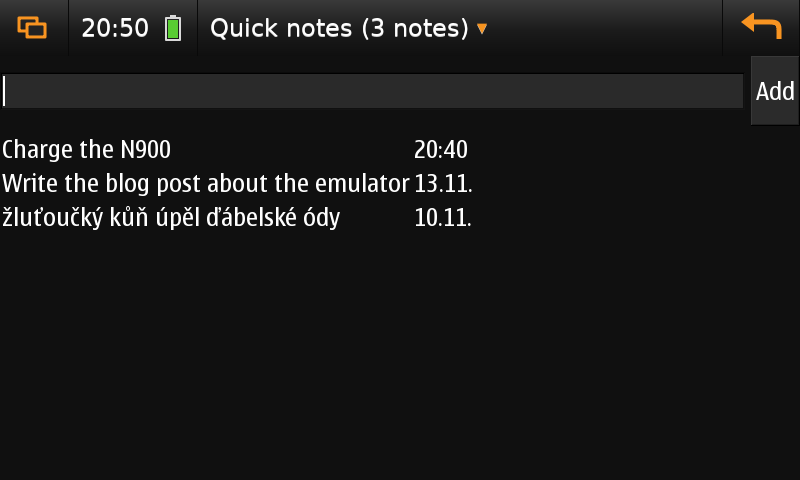
A scripted session
make emu-shots APP=quick-notes replays a list of steps from apps/quick-notes/shots.txt (seconds, action, arguments) and takes screenshots at the marked moments. The program starts fresh each time,
so the images are reproducible and you can compare them after a change:
10  shot list
11  click 300 90         # a tap on the text field
12  type Buy milk
13  click 765 90         # the Add button
15  shot added
27  key F4               # the application menu (Escape is Back)
30  shot menu
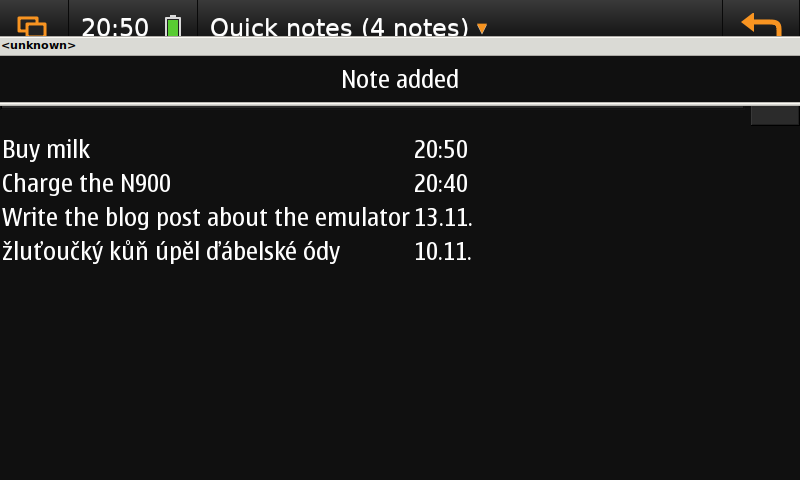
After typing “Buy milk” and tapping Add: the note is on top, the title says 4 notes. The grey strip is the information banner of the emulator.
You can also click through it yourself: make emulator and connect with a VNC viewer to port 5999 of the container; the launcher shows Quick notes.
On the phone
The program needs only python3-hildonlite on the phone:
scp -r apps/quick-notes root@<phone>:/home/user/quick-notes
ssh root@<phone> 'su user -c "DISPLAY=:0 /opt/python3/bin/python3 /home/user/quick-notes/quick-notes"'
For a package with an icon in the menu you add a .desktop file; the package.sh files in nokia-n900-apps show how.
Habits of a native-feeling app
- Controls on top, big and few. A thumb covers the lower part of the screen: finger-sized buttons, and the main action in a row at the top.
- Menu and banners. Rare actions go to the application menu, short feedback to a banner, and anything that deletes asks first (
hl.confirm). - Never block the main loop. A long job in a handler freezes the window. Run it as a subprocess and poll with
hl.timeout(), or callhl.flush()between the steps. - Save after every change, atomically. A phone can lose power at any moment.
- Home directory, not
/tmp. The/tmpof the N900 is a 1 MB tmpfs. Log errors to a file in your home directory: an application started from the menu has no terminal. - Finger scrolling: a
LabelinsidePannableArea.add_viewportscrolls with the finger without selecting text, aTextViewselects text when you drag.
Known quirks
With the Hildon theme the selection of a HildonTreeView stays empty (a tap only activates a row), so ListView.selected() returns the row of the last tap. And hildonlite has no orientation switching yet:
the window is always 800x480 landscape. Both are in the README of hildonlite.
The kit, with this example and its documentation, is at github.com/n900-resurrection/n900-devkit.